

USB Camera is a practical Android app for a very specific job: turning a compatible EasyCap or UVC device into a way to view, record, and broadcast external video and audio. I found its appeal in that directness. It is not trying to replace a full video editor or become an all-purpose studio; it is more like a bridge between a phone and hardware that Android does not always handle gracefully on its own.
That focus is also the key to my recommendation. If you already have a supported USB capture device and want a simple route into your phone, this free app from 沈垚 / ShenYao China is worth trying. If you expect polished editing, automatic scene production, or broad compatibility with every camera and adapter, I would look elsewhere. My experience is that its usefulness depends less on the app alone and more on the quality and compatibility of the USB equipment connected to it.
What makes USB Camera useful in practice
The app sits in the video players and editors category, although I think “external camera utility” describes its real role more accurately. Its central purpose is to receive a video and audio stream from an EasyCap or UVC source, show that feed on the phone, and provide a path for recording or broadcasting it. That makes it relevant for people working with older video sources, inspection cameras, document cameras, or other hardware that outputs through USB.
I like this kind of focused tool because it can solve a problem that ordinary camera apps cannot. A normal camera application expects to use the phone’s built-in lens. USB Camera is designed around the opposite situation: the image comes from somewhere else, and the phone acts as the screen or recording endpoint. That distinction matters when the source is a game console, camcorder, microscope-style camera, security device, or analog video adapter.
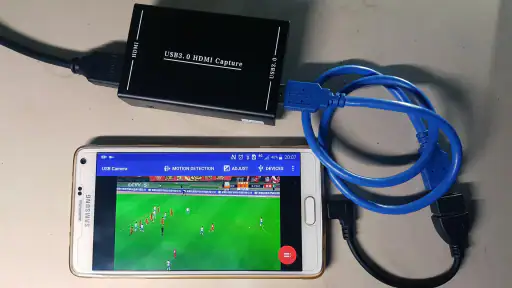
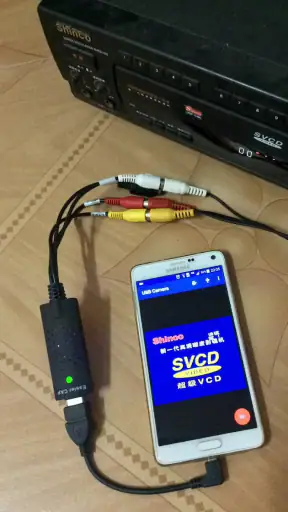
In a typical setup, I would connect the external device through the appropriate USB adapter, open the app, and check whether the incoming picture appears. The important practical step is to treat the connection as a chain rather than assuming the app can fix every link. The source must output a signal the capture hardware understands, the adapter must communicate with the phone, and the phone must supply enough power and support for the connection. When those pieces line up, the app becomes refreshingly straightforward.
The strongest reason to install it is that it gives a phone a job it normally cannot perform by itself: receiving an external video feed. That is a more meaningful advantage than a long list of decorative controls. For a student demonstrating a camera, a hobbyist checking an old tape source, or a creator needing a quick preview from USB hardware, that focused function can be more valuable than a larger app with unrelated tools.
A useful workflow for older video sources
One of the more interesting uses is digitizing or monitoring material from an older analog source through an EasyCap-style adapter. I would not treat the phone as a complete restoration workstation, but it can serve as a convenient capture screen and recording device. This is especially handy when the goal is to make a quick digital copy, verify that a signal is reaching the adapter, or monitor playback without setting up a desktop computer.
The trade-off is that the app cannot improve the original source. A noisy tape, unstable output, poor cable, or weak converter will still produce a poor picture. In fact, the phone display can make small signal problems easier to notice, which is useful during setup but frustrating if someone expects the software to clean them up. I recommend checking the source and adapter separately before blaming the application when the image is distorted or absent.
There is also a sensible workflow advantage in using a phone: the setup can be moved around more easily than a computer-based capture station. For a family member who wants help checking an old camcorder, or for a quick field test of an external camera, portability is a genuine benefit. I would still keep the phone stable, avoid unnecessary background activity, and test a short recording before committing to a long session.
Broadcasting changes the way you should test it
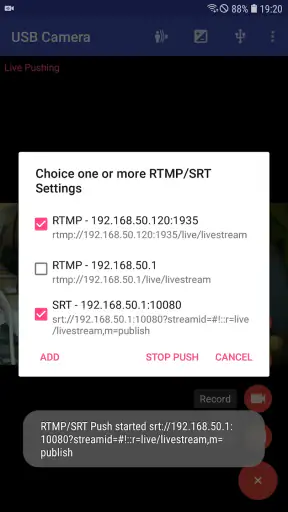
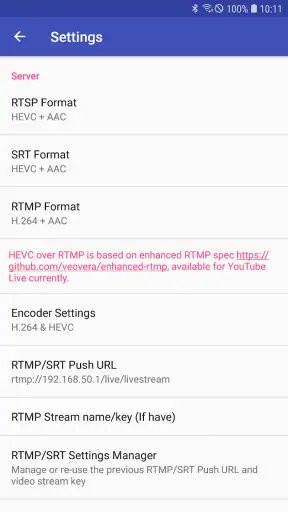
The broadcast function makes the app more interesting than a simple viewer. A live feed from a USB source can be useful for demonstrations, remote teaching, product inspection, or showing a physical object while keeping the phone as the control point. However, broadcasting is more demanding than merely displaying a picture. A feed that looks acceptable in preview may still expose problems once network conditions, audio timing, or sustained operation become important.
For that reason, I would begin with a private or low-stakes test rather than starting an important live session immediately. Check the picture, listen for audio, move the source if necessary, and watch for interruptions. A short rehearsal also reveals whether the chosen USB hardware behaves consistently when it remains active for more than a few moments. This is one of the most useful habits with an app like this: validate the entire chain before the real event.
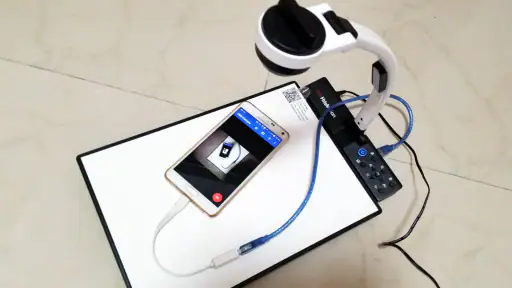
USB Camera is particularly appealing when the external source has a better angle or purpose than the phone’s own camera. A document camera can point at a page while the phone stays accessible. A small inspection camera can reach a tight space. A capture adapter can bring an older video source into a modern mobile workflow. These are not glamorous scenarios, but they are exactly where a specialized utility earns its place.
Where it fits beside ordinary camera and editing apps
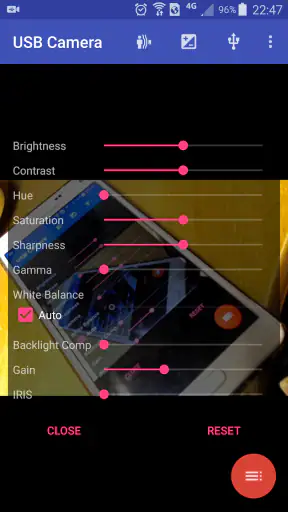
Compared with the standard camera app, USB Camera offers a different input rather than a better version of the same camera experience. The standard app is normally the easier choice for taking pictures with the phone itself, especially when you want familiar exposure controls, portrait features, or quick sharing. This app becomes the better choice only when the image originates from a connected USB device.
Compared with mobile video editors, it occupies an earlier stage in the process. Editors are designed for trimming clips, adding titles, arranging multiple pieces of footage, and preparing a finished presentation. USB Camera is more useful for getting an external feed into the phone in the first place. If your main goal is post-production, installing an editor afterward makes more sense than expecting this tool to provide that entire workflow.
Desktop capture software remains the stronger option for elaborate recording sessions, detailed source management, and advanced production control. A computer usually offers more room for monitoring, storage, and accessories. The phone-based approach wins when convenience, mobility, or a quick connection matters more than a full studio arrangement. I see USB Camera as a compact bridge, not a replacement for professional capture software.
The main weakness is compatibility uncertainty
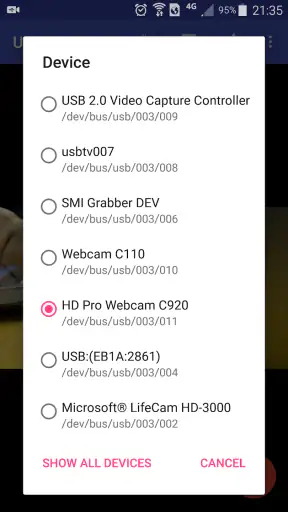
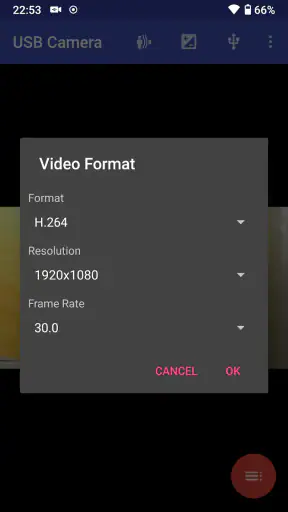
The biggest frustration is that “USB camera” can mean many different things in real life. UVC compatibility helps, but it does not guarantee that every camera, adapter, cable, or phone combination will behave identically. A connection may fail because the source uses an unsupported format, the adapter is unreliable, the phone cannot provide sufficient power, or the physical connection is loose. The app is involved, but it is not the only variable.
This makes the first-use experience less predictable than opening a normal camera app. I would not buy a random capture device solely because it has a USB plug and then assume the application will make it work. Check the hardware’s UVC or EasyCap suitability, use a dependable adapter, and test the exact arrangement you plan to use. That preparation is not exciting, but it saves far more time than repeatedly reconnecting equipment without changing anything.
Audio deserves special attention. A video feed can appear correctly while the sound is delayed, missing, or coming from an unexpected part of the setup. When recording an interview, lesson, or old tape, I would make a short test clip and play it back before continuing. Watching a live preview is not enough to prove that the finished recording contains usable audio.
Long sessions also require realistic expectations. A phone handling a continuous external stream may become inconvenient to hold, consume storage, or place extra demand on the connection. I would position the phone securely, keep the cable from pulling on the adapter, and make sure there is enough free space for the intended recording. These are ordinary precautions, but they matter more here because the phone is acting as both display and capture device.
The average rating is 2.9 from around eighteen thousand ratings, with roughly seven hundred seventy-eight written reviews, so the public response is mixed rather than universally enthusiastic. I read that as a reason to approach the app with a compatibility-first mindset, not as proof that it is useless. A specialized tool can be excellent for one hardware combination and disappointing for another. The rating reflects that kind of uneven experience more than a simple question of whether the core idea works.
Who should try it, and who should skip it
I would recommend USB Camera to people who already own an EasyCap or UVC device and want to test an Android-based capture workflow before investing in more elaborate equipment. It is also a sensible candidate for hobbyists, teachers, repairers, retro-video users, and anyone who needs to inspect an external feed without carrying a computer. The free price makes experimentation easier, particularly when the hardware is already available.
A realistic everyday example would be a teacher using a USB document camera to show a physical object during a remote lesson. The phone can act as the receiving screen and broadcasting device while the document camera stays pointed at the desk. Another example is someone checking whether an old camcorder still outputs a picture through an EasyCap adapter before deciding how to preserve the recordings. In both cases, the app’s value comes from connecting equipment that a normal phone camera cannot replace.
I would skip it if your only need is recording yourself with the built-in phone camera. The standard camera application will usually be simpler for that. I would also choose a fuller production tool if you need a polished broadcast layout, extensive audio mixing, advanced overlays, or a complete editing timeline. USB Camera is not the right purchase—although it is free—to solve every mobile video problem.
Its Everyone content rating makes it approachable for general use, but that should not be confused with universal hardware support. A simple age classification says little about whether a particular adapter will work. The more useful question is whether your equipment produces a compatible stream and whether your phone can maintain the connection reliably.
Small habits that make the setup less frustrating
I recommend starting with the shortest possible chain. Connect the source, adapter, and phone without adding extra hubs or extensions, then confirm that the picture appears. Once the basic arrangement works, add the accessories you actually need. This isolates problems quickly and prevents a faulty hub or cable from making a working capture device look incompatible.
Next, record a brief sample instead of judging the setup only from the live view. Watch the sample with sound, inspect the image for interruptions, and confirm that the result is saved where you expect it. This catches the two problems people often discover too late: a silent recording and a feed that looked stable but dropped frames during capture.
For broadcasts, I would separate the hardware test from the presentation test. First verify the external signal locally. Then test the broadcast path with the same source and cable arrangement. If something fails, you will have a better idea whether the issue is the USB connection or the live delivery stage. This two-step method is more reliable than changing several things at once.
Finally, keep the phone physically supported. A dangling adapter can put stress on the port, and a moving phone can make a perfectly good external source appear unstable. A small stand and a short, well-positioned cable can improve the experience more than another application setting. With this app, practical setup discipline is part of getting good results.
My verdict after weighing the trade-offs
USB Camera is a niche but meaningful utility. Its best quality is not sophistication; it is the ability to make an Android phone useful with external EasyCap and UVC video sources. That can open up recording and broadcasting workflows that ordinary camera apps simply do not address. I appreciate that the app’s purpose is easy to understand once the hardware is connected.
At the same time, I would not describe it as a guaranteed plug-and-play answer. Compatibility, power, cabling, source formats, and audio behavior all influence the result. The mixed average rating and the range of possible USB equipment reinforce the need for testing. Anyone expecting a complete mobile studio may feel limited, while someone with the right adapter may find it exactly as useful as needed.
The app was released on April 13, 2016, and it has reached over five million installs, which shows that the use case has attracted a substantial audience over time. Those figures do not change its specialized nature, but they do make it a reasonable first experiment for people exploring mobile capture. Since it is free, the most sensible approach is to try it with your actual hardware rather than judging it from the name alone.
My final recommendation is simple: install it when your problem is “how do I bring this external USB video feed into my phone?” For that question, USB Camera can be a practical answer. For ordinary phone filming, advanced editing, or dependable professional production, another category of app will serve you better. I would give it a chance with a short test recording, careful cable setup, and modest expectations; that is where its real strengths are most likely to show.


